
- This topic has 0 replies, 1 voice, and was last updated 6 months, 3 weeks ago by
Caleb Cox.
-
AuthorPosts
-
January 29, 2026 at 7:53 pm #17906
GIFs are great for conveying an idea and adding life to your GUI, whether to demonstrate something or to act as a loading screen. However it may not always be clear at a glance how to bring animated GIFs into uEZ GUI. The goal of this walkthrough is to create an example showing how users can bring animated GIFs into their applications
This example is separated into two parts, and was created using the uEZ Project Maker that ships with uEZ 2.15.001 from Source Forge, in Rowley Crossworks 5.1.0, using a uEZGUI-4357-50WVN.
In this first half of the example, we created a copy of the Home Screen and stripped out most of the widgets to make the GIF the primary focus.
To use GIFs on uEZ GUI, you need to convert your desired GIF to a .c file using NXP’s “Bin2C” utility. uEZ includes this utility, under:
uEZ –> Source –> Library –> GUI –> SEGGER –> emWin –> Libraries –> NXP –> UtilityTools –> Bin2C.exe.
1. Double click on Bin2C.exe
2. In the GUI, click “Select File”
3. Navigate to your GIF.
4. Click “Convert”.
5. The Bin2C UI will not show a “conversion complete” message, but the converted .c file will be output into the same directory as the input .gif you selected.
As a quick example:
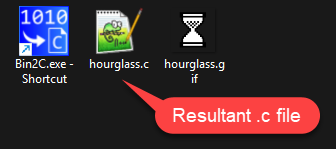
6. Add this .c file to the uEZ GUI project. For example:

7. Open “hourglass.c” and at the top of the file, remove the “static” keyword from the gif data array definition so you can use the gif wherever you need. E.g.:
Before: static const unsigned char _achourglass[63477UL + 1]
After: const unsigned char _achourglass[63477UL + 1]
i. Note that the name “_achourglass” will vary depending on your GIF file’s filename when converted to a .c file.
8. Open Graphics.h under App –> emWin –> Graphics.
9. Add the new GIF declaration to the list of graphics your application uses, e.g.
extern GUI_CONST_STORAGE GUI_BITMAP bmlogo;
extern const unsigned char _achourglass[63477UL + 1];
10. Now at the top of your screen .c file where you wish to display it, add an ID definition for the GIF image, e.g:

11. Now you can add the image to your screen’s LAF setup like normal:
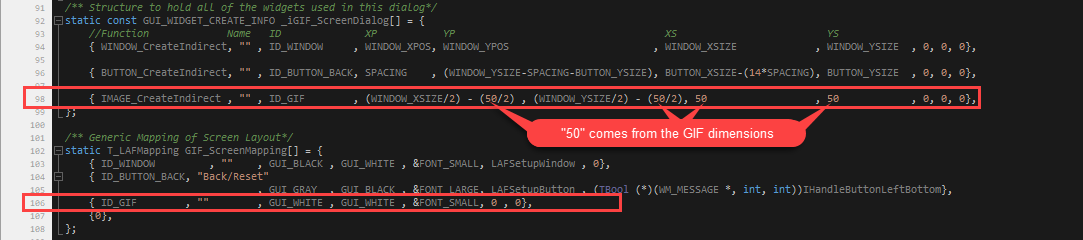
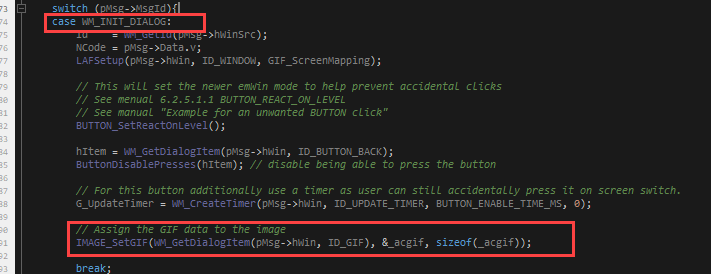
12. Finally, in your screen’s initialization “WM_INIT_DIALOG” event, you just need to call IMAGE_SetGif on the GIF ID, and assign the GIF data to it:
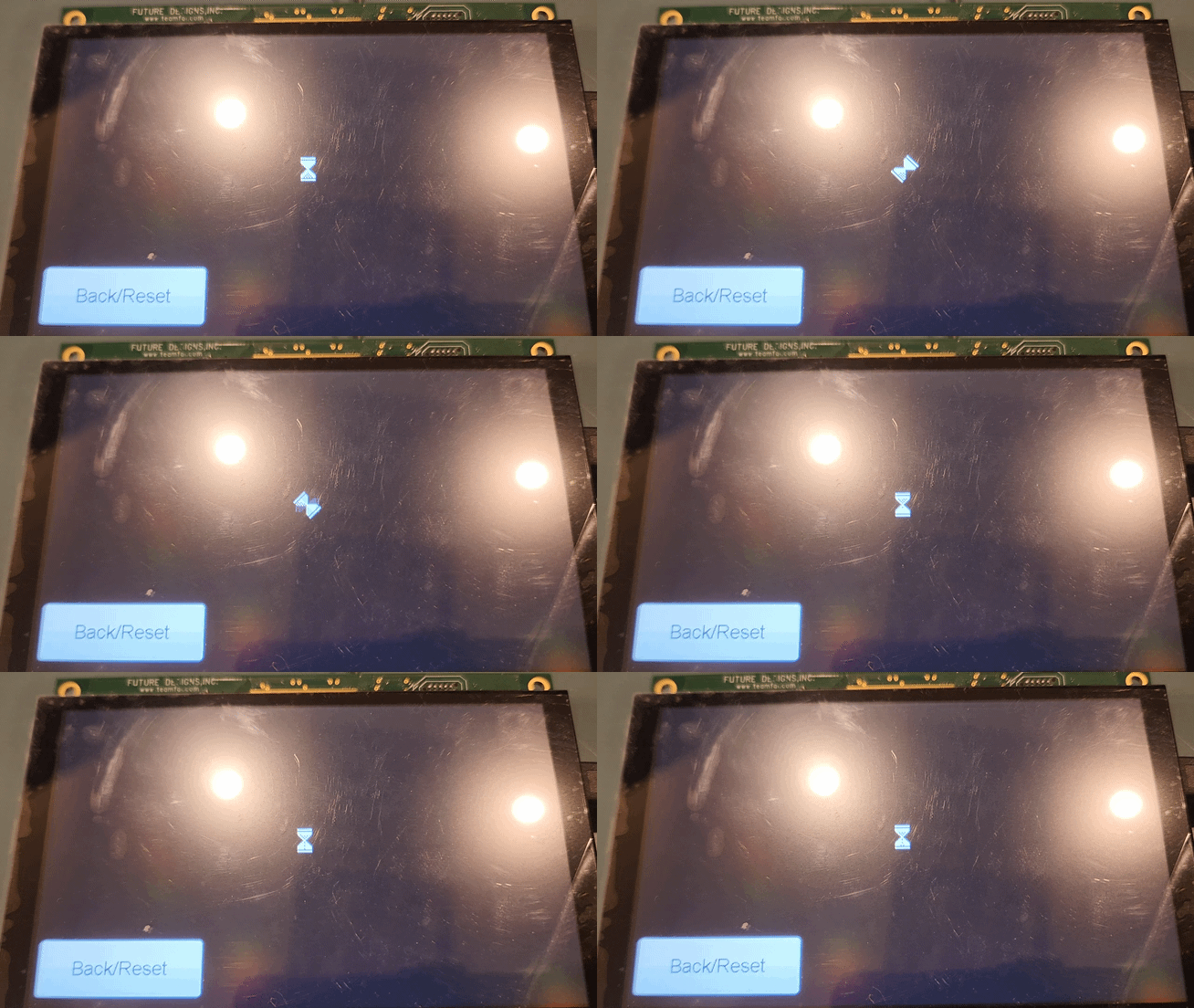
13. You should now be able to build and debug your application, and the gif should load and begin playing automatically:
Alternative for Large Images but Simple Animations
GIFs can get big fast, especially with large dimensions. If you want a big image on your GUI but it only has a few noticeably different frames, you can use an array of .PNG images instead to save space. To animate an array of PNGs you can use a timer and either a global Boolean or some other system state manager to determine when to “play” the “animation”.
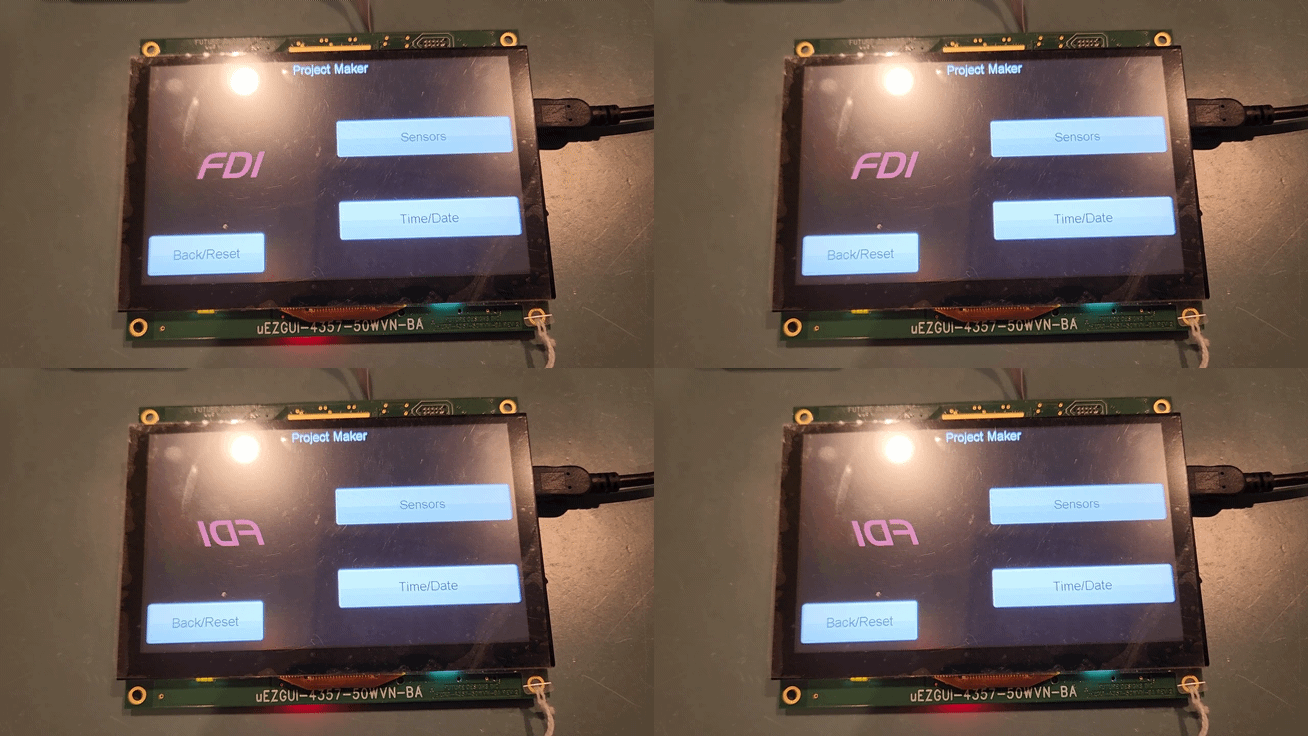
In this second half of the example, we modified Homescreen.c of the generated project directly, as it will utilize the widgets that area already in use. We will cycle through two PNG images (one is regular, the other is mirrored horizontally. This example only uses two-frames of animation but it can be expanded to use more frames.
1. Edit ConvertGraphics.bat to point to the desired png files, for example:

Note: as a refresher, ConvertGraphics.bat is in the Source –> App –> emWin –> Graphics directory of any uEZ Project Maker project.
2. Save, and then double click ConvertGraphics.bat to convert the PNG files to .C files.
3. After converting, add these .c files to the project.
4. Add the PNG image pointers from the converted .C files to Graphics.h.

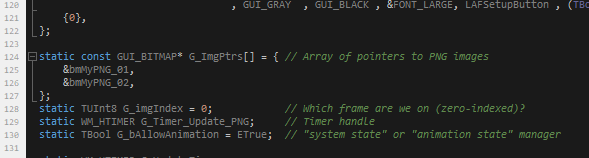
5. In the screen .c file where the “animated” PNG will play, at global scope…
a. add an array of const GUI_BITMAP pointers of your images.
b. Add an integer for tracking the current image index of the PNG.
c. Add a timer handle for periodically updating the PNG image.
d. Add a Boolean for tracking “system state” (this rough example just assumes a toggle of “can animate/cannot animate”).
e.
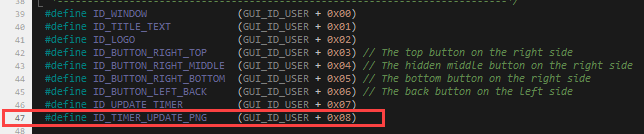
6. Add a Timer ID for this window to keep track of the PNG update timer.
7. Now in the screen’s WM_INIT_DIALOG event, assign the timer:

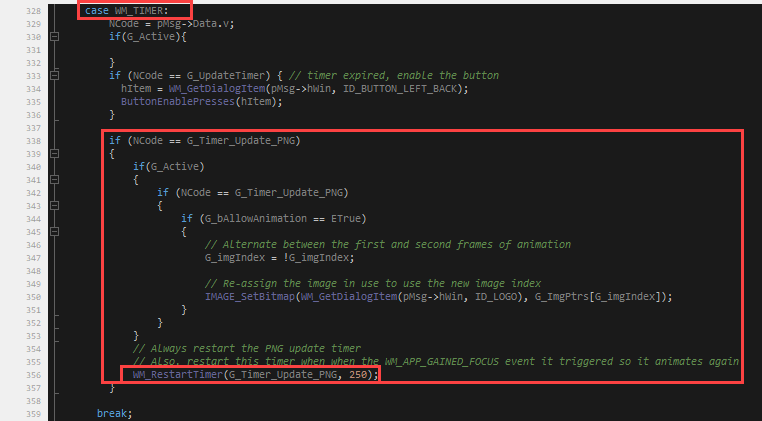
8. Now, in the screen’s WM_TIMER event, add a check for the PNG update timer handle, and depending on system state, update the image. For example:
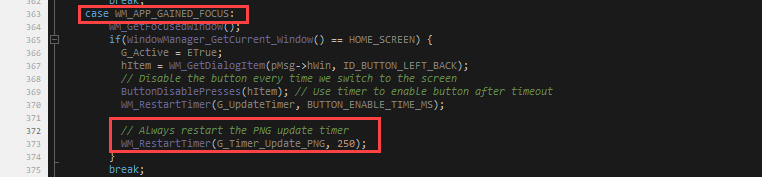
9. If the current screen loses focus, the timer will stop running once it expires from its previous run. So, restart the timer once the correct screen gains focus again:
Result:
-
AuthorPosts

- You must be logged in to reply to this topic.